
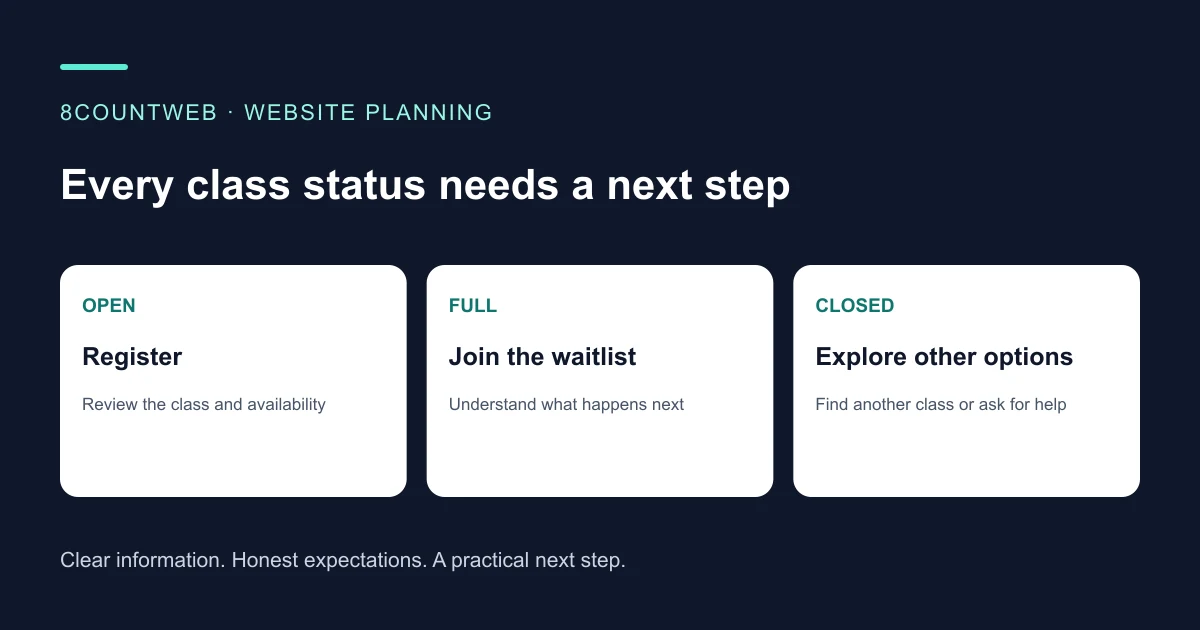
A full swim class does not have to be a dead end on your website. A family still needs to know whether the class is right for their child, whether a waitlist is available, what joining it means, and what to do if they need a different time.
The clearest path separates three states: open for registration, full with a waitlist, and closed with no current action. Each state needs an honest label and a next step that matches what your registration system actually allows. That is a website-planning decision as much as a software setting.
Explain the program before asking a family to join a waitlist
A parent should not need to create an account just to learn whether a class is a fit. Your public page can explain the age or readiness guidance, location, lesson format, general schedule, and where current availability is confirmed. The approved registration tool can remain the source of live spaces and family records.
This follows the same principle as a useful class registration page: help families choose before sending them into a scheduling or portal flow. When a class is full, that context becomes even more important. A family deciding whether to wait may also need to compare another level, time, or location.
Make “full” and “waitlist available” mean different things
“Full” describes capacity. “Join waitlist” describes an action. Do not make families guess whether the button will submit an inquiry, create a parent account, or place a child on a particular class list.
For each full class, consider displaying:
- The program and class name in parent-friendly language.
- The location and relevant session or time information.
- A clear “Join this class waitlist” action when that action is actually available.
- A route to other suitable classes or a contact option when it is not.
- A brief explanation of what happens after a parent submits, including how and when the organization communicates if those details are known.
Some systems can expose a waitlist action directly. For example, Jackrabbit CLASS documents an optional setting that provides a waitlist link in its Parent Portal and Online Registration class search when a class is full. That is a platform-specific option, not a promise that every installation or product has the same behavior. Verify the actual settings and links before publishing instructions for families.
Set expectations your team can keep
A waitlist confirmation is not an enrollment confirmation. Say what joining the list does and does not mean. If the order of offers, eligibility rules, fees, or reply windows vary by program, publish only the rule your team can maintain consistently.
One swim school’s public waitlist page explicitly says a place is not guaranteed, gives no wait-time estimate, and describes its own priority order. Its rules are specific to that school; the useful lesson is the clarity of expectations. Your website should reflect your policies, not copy someone else’s.
Before launch, ask the person who manages enrollment to review the wording. A well-designed page can still create confusion if it promises a timeline that staff cannot honor.
Give search engines useful public context without duplicating live inventory
Search-visible program information belongs on a clear public page: what the lesson is, who it is for, where it happens, and how to check the next available class or waitlist. You do not need to publish a duplicate live roster that may become inaccurate the next day.
Google’s guidance for AI features in Search recommends making important information available as text and making pages discoverable through internal links. It also says the same foundational SEO practices apply to AI features; there is no special GEO markup that guarantees inclusion. Clear, accurate program text can help people and search systems understand the offering, but it does not guarantee indexing, rankings, or AI visibility.
For more on the roles of a public page and a class-management tool, see class registration integrations and SEO.
Test the path as a first-time parent
Before calling the page finished, try it on a phone without using a staff account:
- Find a class from the public program page.
- Confirm whether it is open, waitlisted, or unavailable.
- Follow the exact button a new parent would use.
- Check that the destination refers to the same class and location.
- Submit a test only if your platform offers a safe test route; otherwise review the flow without creating a real family record.
- Confirm the website says what happens next, and assign someone to recheck the path when a session changes.
The most revealing question is simple: after a family sees “class full,” can they still make a confident next decision?
How 8CountWeb can help
8CountWeb can review the public class information, simplify the wording around full classes, and plan a clearer handoff to the registration or parent-portal tool your organization uses. The work begins with the family’s decision: whether to register now, join a waitlist, choose another class, or ask for help.
The aim is a page families can understand and your team can keep accurate through enrollment changes, without making an unsupported promise about search rankings or waitlist conversion.
Contact 8CountWeb about your class and waitlist path. Share a current class page, the tool you use, and the point where families most often get stuck. We can recommend a practical next step.
Source links support factual claims; examples are not client endorsements. Explore more website resources.